Automated Pull Request Description in Azure DevOps using Azure OpenAI
Problem
Modern software teams rely on Pull Requests (PRs) to review code before it is merged. PR descriptions provide reviewers with context about what changed and why.
In practice, these descriptions are often poorly written or missing because developers must write them manually. This creates several issues:
Inconsistent documentation across PRs
Missing context for reviewers
Slower code reviews due to unclear changes
Increased risk of misunderstandings
Writing clear PR descriptions becomes an additional task that many developers skip or rush.
Solution
Artificial Intelligence can automate the creation of PR descriptions.
By integrating Azure OpenAI with Azure DevOps, it is possible to analyze the code changes inside a Pull Request and automatically generate a structured summary.
The AI reads the diff, understands the modifications, and produces a concise explanation of:
What changed
Why the change was made
The impact of the modification
This ensures every PR includes clear documentation without requiring manual effort from developers.
What This Guide Covers
This guide explains how to automate Pull Request descriptions using Azure services.
You will learn how to:
Set up Azure OpenAI in your Azure environment
Connect Azure DevOps to Azure OpenAI
Analyze code changes in a Pull Request
Generate AI-based PR descriptions
Integrate the process into your PR workflow
The result is faster code reviews, consistent documentation, and improved developer productivity.
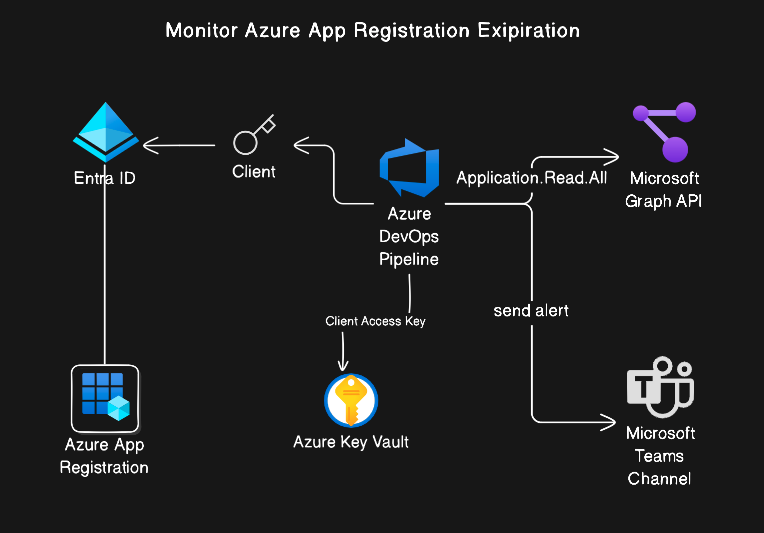
Bellow is the hight level diagram workflow:

Prerequisites
Before diving into the implementation, ensure you have the following in place:
- Azure Subscription: An active Azure subscription with permissions to create Azure OpenAI resources.
- Azure DevOps Organization and Project: An existing Azure DevOps organization and a project where you have permissions to create pipelines, and variable groups.
- PowerShell or Azure CLI: For executing scripts and managing Azure resources.
- Personal Access Token (PAT) for Azure DevOps: A PAT with sufficient permissions (e.g.,
Code (Read & Write),Build (Read & Execute)) to allow the pipeline to read PR details and update its description. Store this securely.
Azure AI Foundry
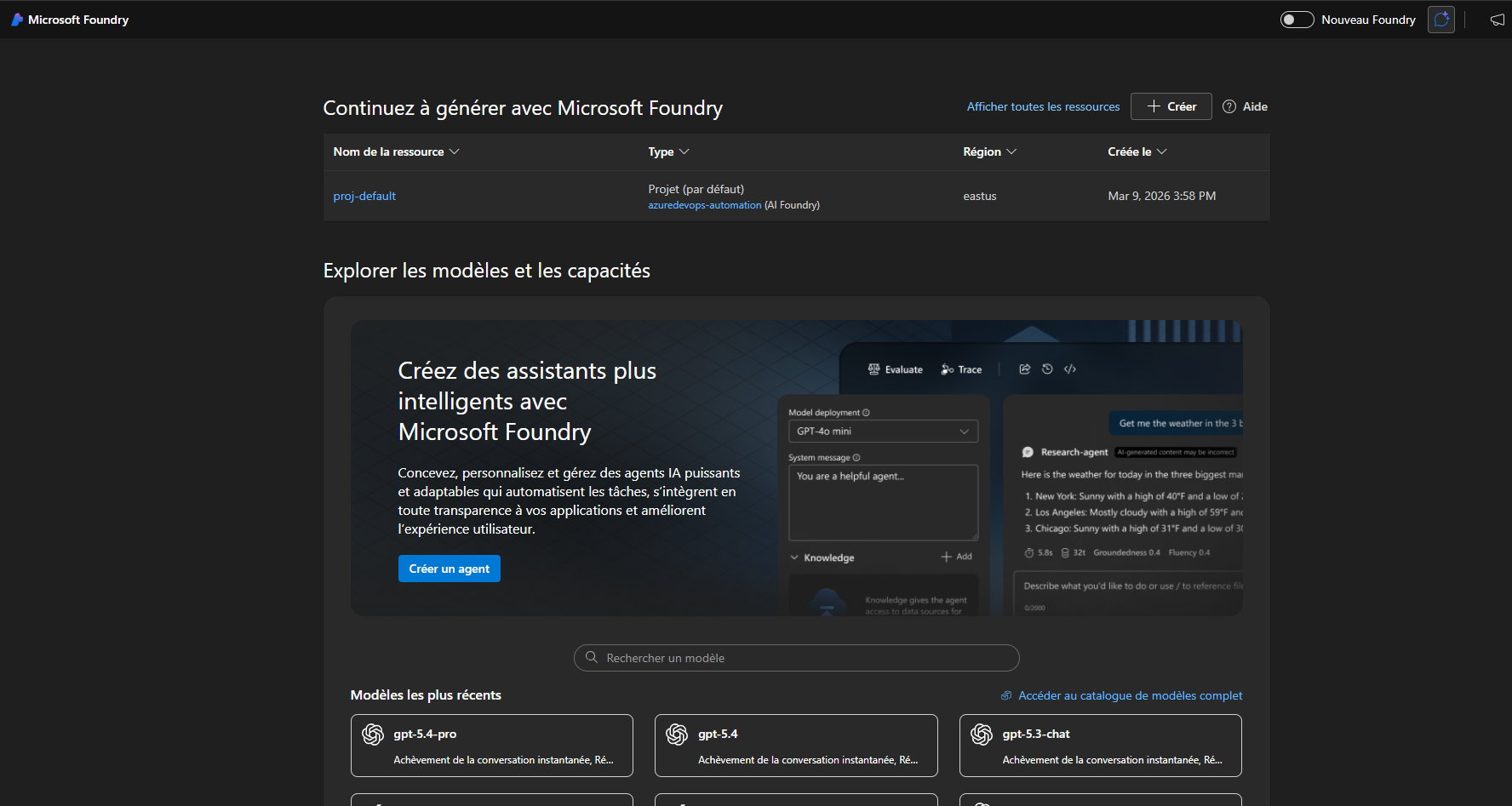
The first step is to provision an Azure OpenAI resource and deploy a model that will power our description generation.
Create an Azure OpenAI Resource: Navigate to the Azure portal, search for “Azure OpenAI,” and create a new resource. Choose your subscription, resource group, region, and provide a unique name.
Deploy a Model: Once the resource is created, go to the Azure OpenAI Studio (accessible from your resource overview in the Azure portal). In the “Management” section, select “Deployments” and create a new deployment.
- Choose a model, such as
gpt-4(recommended for better quality). - Give your deployment a name (e.g.,
pr-description-generator).
- Choose a model, such as
- Retrieve API Key and Endpoint: From your Azure OpenAI resource in the Azure portal, go to “Keys and Endpoint” under “Resource Management.” Copy one of the
KEYvalues and theEndpointURL. These will be used to authenticate and interact with your deployed model.
Azure DevOps Setup
Initialize the Azure DevOps repository using the following codebase structure.
The complete source code is available here.

To allow your Azure Pipeline to interact with Azure OpenAI and update Pull Request details, we need to set up secure connections and variables.
Create a Variable Group: In your Azure DevOps project, navigate to
Pipelines > Libraryand create a new variable group :azdo-openai-key.- Add a secret variable named
openai-keyand paste the API Key you retrieved from Azure OpenAI. - Add a secret variable named
AzdoPATand paste your Azure DevOps Personal Access Token. This PAT needsCode (Read & Write)andBuild (Read & Execute)permissions.
- Add a secret variable named
Grant Pipeline Permissions: Ensure your pipeline has the necessary permissions to access the variable group. In the variable group settings, go to “Pipeline permissions” and grant access to the pipelines that will use it.
Setup the Build Validation Pipeline for your development repository where you want to generate the Auto Pull Request Description. You can follow the Microsoft full guide.

AI-Powered Description Generation Scripts
We’ll create a PowerShell script functions that fetches the changes in a Pull Request, sends them to Azure OpenAI, and then updates the PR description with the AI-generated text.
Azure Pipeline is used to orchestrate the workflow.
The code structure:
Azdo_PR/Invoke-PRDescription.ps1Set-PRDescription.ps1
pipelines/PR-Description-pipeline.yml
Set-PRDescription function
This function updates the description of an Azure DevOps pull request. First It clones the repository, checks out the relevant branches, generates a new PR description using a call to Invoke-PRDescription, which is responsible for generating the pull request description using AI (OpenAI) and then updates the PR description via the Azure DevOps REST API.
# Synopsis
# This script sets the description of a pull request in Azure DevOps.
# It uses the Azure DevOps REST API to update the pull request description.
function Set-PRDescription {
param (
[parameter(Mandatory)]
[string]
$Token,
[parameter(Mandatory)]
[string]
$Organization,
[parameter(Mandatory)]
[string]
$Project,
[parameter(Mandatory)]
[string]
$Repo,
[parameter(Mandatory)]
[string]
$PullRequestId,
[parameter(Mandatory)]
[string]
$SourceBranch,
[parameter(Mandatory)]
[string]
$TargetBranch,
[parameter(Mandatory)]
[string]
$OpenAISecret,
[parameter(Mandatory)]
[string]
$AzureDevOpsToken
)
# Set the Azure DevOps REST API endpoint
$ApiUrl = "https://dev.azure.com/$Organization/$Project/_apis/git/repositories/$Repo/pullRequests/$($PullRequestId)?api-version=7.1"
write-host "API URL: $ApiUrl"
write-host "repo: $Repo"
write-host "project: $Project"
# Checkout the source branch to get the full history of commits
git config --global user.name "Azure DevOps Bot"
git clone "https://$($Token)@dev.azure.com/$($Organization)/$($Project)/_git/$($Repo)" $Repo
Set-Location -Path $Repo
$extractedSourceBranchName = $SourceBranch -replace '^refs/heads/', ''
$extractedTargetBranchName = $TargetBranch -replace '^refs/heads/', '' -replace '^origin/', ''
git checkout $extractedSourceBranchName
git fetch origin $extractedTargetBranchName
# Generate the pull request description using OpenAI Key
write-host "Source Branch: $extractedSourceBranchName"
write-host "Target Branch: $extractedTargetBranchName"
$newDescription = Invoke-PRDescription -SourceBranch $extractedSourceBranchName -TargetBranch $extractedTargetBranchName -OpenAIKey $OpenAISecret
# Create the request body with the new description
$RequestBody = @{
description = $newDescription
} | ConvertTo-Json
# Send the request to update the pull request description
# Authorization is done using the SYSTEM_ACCESSTOKEN environment variable, provide OAuth token with appropriate permissions to access the Azure DevOps REST API
Invoke-RestMethod -Uri $ApiUrl -Method Patch -Body $RequestBody -ContentType "application/json" -Headers @{
Authorization = "Bearer $($AzureDevOpsToken)"
"Content-Type" = "application/json"
}
}
Invoke-PRDescription function
The function is responsible for generating the pull request description using AI (OpenAI). This ensures the PR description is automatically created based on branch differences before updating it in Azure DevOps.
# Synopsis
# This script generates a pull request description using the OpenAI API. It takes the source branch, target branch, and OpenAI API key as parameters, and returns a generated description based on the differences between the two branches.
function Invoke-PRDescription {
param (
[parameter(Mandatory)]
[string]
$SourceBranch,
[parameter(Mandatory)]
[string]
$TargetBranch,
[parameter(Mandatory)]
[string]
$OpenAIKey
)
$normalizedSourceBranch = $SourceBranch -replace '^refs/heads/', '' -replace '^origin/', ''
$normalizedTargetBranch = $TargetBranch -replace '^refs/heads/', '' -replace '^origin/', ''
# Compare the checked out source branch with the remote target branch.
$changes = git log "origin/$normalizedTargetBranch...$normalizedSourceBranch" -p 2>&1
write-host "Changes count: $($changes.Count)"
if ($LASTEXITCODE -ne 0) {
throw "Failed to collect git log for branches '$normalizedTargetBranch' and '$normalizedSourceBranch': $changes"
}
# Prepare the context for OpenAI API
$content = @()
$content += @{
role = 'system'
content = 'Start with a brief summary of the changes, followed by a detailed description of the changes, and any relevant information that would help reviewers understand the context and impact of the changes.
You will be generating a pull request description based on the following changes between branches using the git log content. A description for a pull request must not be longer than 4000 characters. Focus on the most important changes and summarize them effectively. If the changes are too many, prioritize summarizing the key changes and providing an overview rather than listing every single change.'
}
$content += @{
role = 'user'
content = "
Generate a pull request description based on the following changes between branches '$SourceBranch' and '$TargetBranch':`n`n$changes.
"
}
$openai = @{
api_key = $OpenAIKey
api_base = "https://azuredevops-automation.openai.azure.com/"
name = "gpt-4o"
api_version = "2024-06-01"
}
$body = [ordered]@{
messages = $content
} | ConvertTo-Json
$url = "$($openai.api_base)/openai/deployments/$($openai.name)/chat/completions?api-version=$($openai.api_version)"
# Call the OpenAI API to generate the description using the gpt-4o model.
$response = Invoke-RestMethod -Uri $url -Method Post -Headers @{
"api-key" = "$($openai.api_key)"
"Content-Type" = "application/json"
} -Body $body
# Extract the generated description from the response
$generatedDescription = $response.choices[0].message.content.Trim()
return $generatedDescription
}
OpenAI System Prompt
The completion text in Invoke-PRDescription uses two roles for the OpenAI API:
- system: Provides instructions and context to the AI, guiding it to summarize changes, focus on key points, and limit the description length.
- user: Supplies the actual input, including the branch names and the git log output, asking the AI to generate a pull request description based on these changes.
This structure helps the AI understand both the task requirements and the specific data it should process.
Azure DevOps Pipeline
The Azure Pipeline uses the PowerShell@2 task, which runs PowerShell scripts with the required permissions to make API calls to Azure DevOps. It loads the PR description scripts and then calls the Set-PRDescription function to generate and update the pull request description automatically.
trigger: none
variables:
- group: 'azdo-openai-key'
- name: devOpsPool
value: 'ADMP-Pool-NPrd'
stages:
- stage: Build
displayName: Generate PR Description
pool:
name: $(devOpsPool)
jobs:
- job: GeneratePRDescription
displayName: 'Generate PR Description using GPT4o'
steps:
- task: PowerShell@2
inputs:
targetType: 'inline'
script: |
. ./Azdo_PR/Set-PRDescription.ps1
. ./Azdo_PR/Invoke-PRDescription.ps1
Set-PRDescription `
-Token $(System.AccessToken) `
-SourceBranch $(System.PullRequest.SourceBranch) `
-TargetBranch $(System.PullRequest.TargetBranchName) `
-PullRequestId $(System.PullRequest.PullRequestId) `
-Project $(System.TeamProject) `
-Repo ("$(System.PullRequest.SourceRepositoryUri)" -split "/" | Select-Object -index 6) `
-Organization ("$(System.CollectionUri)" -split "/" | Select-Object -index 3) `
-OpenAISecret $(openai-key) `
-AzureDevOpsToken $(AzdoPAT)
displayName: 'Set PR Description'
Worfklow in action
it’s time to test the automation and refine the results.
Create a Pull Request: Make some changes to a file in your repository, commit them to a new branch, and then create a Pull Request targeting your
main(or primary) branch.
- Monitor the Pipeline: As soon as you create the PR, the
prpipeline should trigger. Navigate toPipelines > Pipelinesin Azure DevOps and observe the execution of your “Generate PR Description” pipeline. Check the logs of the PowerShell task for any errors or successful completion messages.
- Review the Generated Description: Once the pipeline completes, go back to your Pull Request. You should see that the description field has been automatically populated with the AI-generated summary.


Conclusion
The approach presented here is only one way to automate pull request descriptions. The output format depends entirely on the prompt sent to the AI model. By modifying the prompt, the generated summary can be adapted to different team preferences, such as changing the structure, adding sections, or emphasizing specific types of changes. Achieving the desired format may require several iterations until the summaries consistently match the expectations of the review process.
Automating pull request descriptions with Azure OpenAI, Azure DevOps, and PowerShell reduces the manual effort required to document code changes. Instead of writing summaries for every pull request, developers can rely on AI to generate clear and consistent descriptions based on the code diff. This improves documentation quality, accelerates the review process, and allows developers to focus on development rather than repetitive tasks.